Aurora Screensaver
Windows Screensaver
One sweeping northern lights scene, across every display you own.
The northern lights over a mountain lake, stretched seamlessly across all of your displays.
Free trial
Every feature works. A small trial caption shows on screen until you buy a licence.
- One scene across every display
- Bezel gap setting, so lines carry on straight
- Six aurora colour schemes
- Shooting stars and a slowly drifting view
- A new landscape every time
For Windows 11 · aurora-screensaver.zip · 74 KB
See it in action
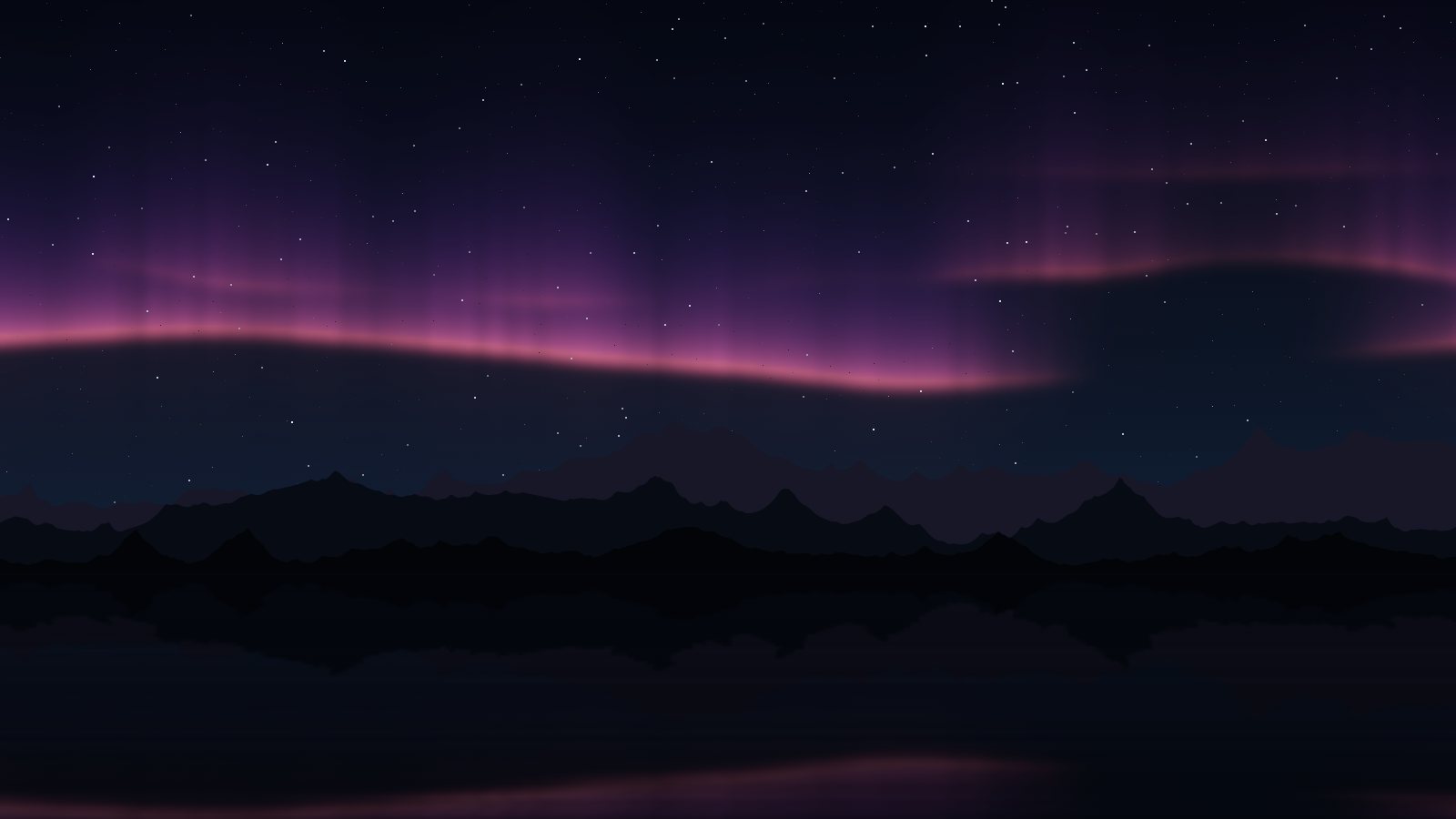
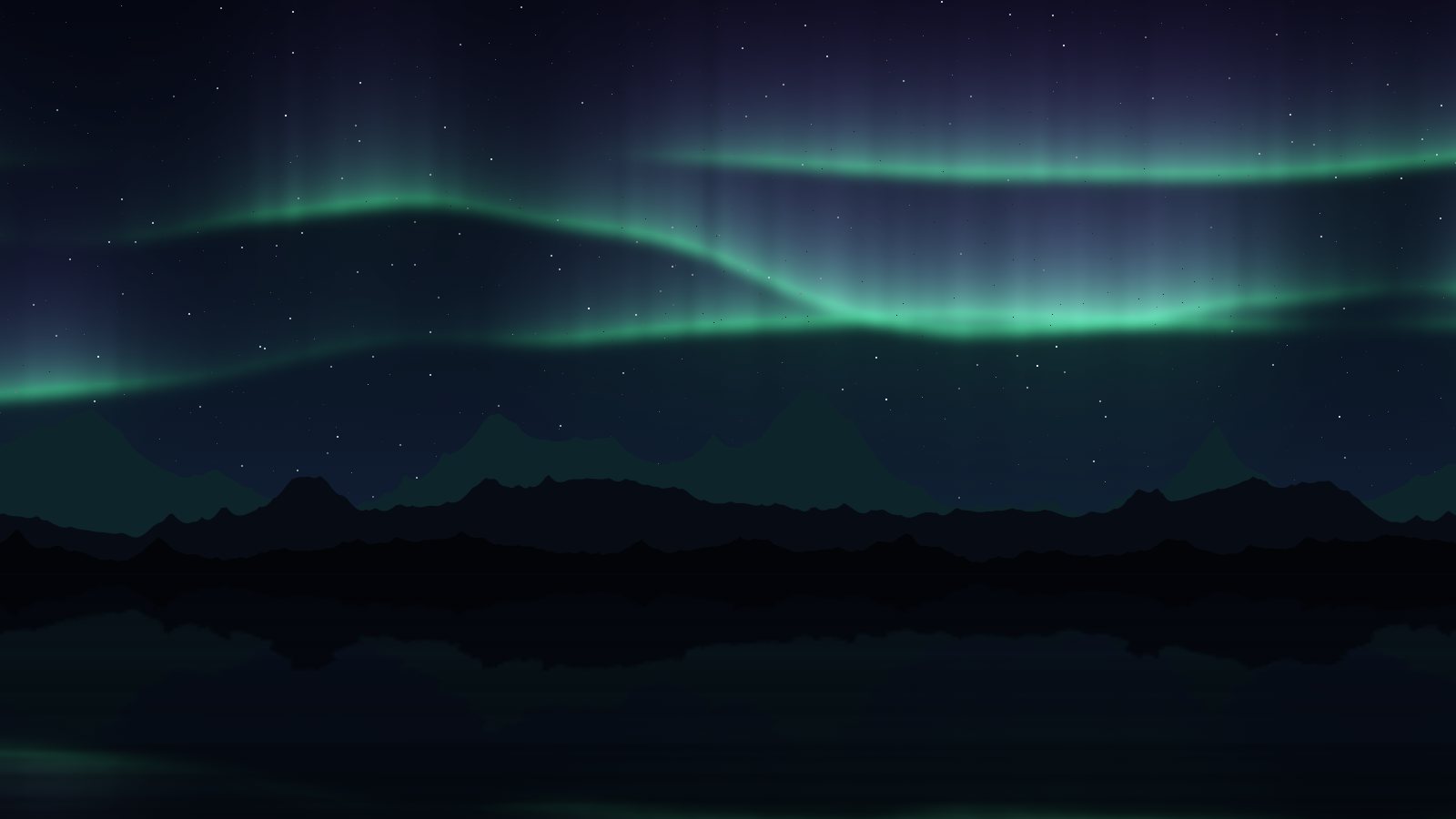
The northern lights, edge to edge
Made for multiple displays
The scene follows your display arrangement in Windows, so the aurora, mountains and shooting stars carry on from one screen to the next.
Bezel gap
Skip the part of the scene hidden behind the frames between displays, so lines run straight across. Line up displays lets you set it by eye.
A living sky
Curtains of aurora ripple, fold and brighten over the mountains, as gently or as quickly as you like, with the occasional shooting star.
Lake reflection
A still mountain lake mirrors the sky. Switch it off for a view across open ground.
Six colour schemes
Arctic green, Green and violet, Teal and pink, Crimson, Ice blue and Clarke orange.
A new landscape every time
The mountains are different each time it starts, or keep the same view if you have a favourite.
Settings
Click Settings… in Windows' Screen Saver Settings to make the Aurora Screensaver your own. Your choices are saved for your Windows account.
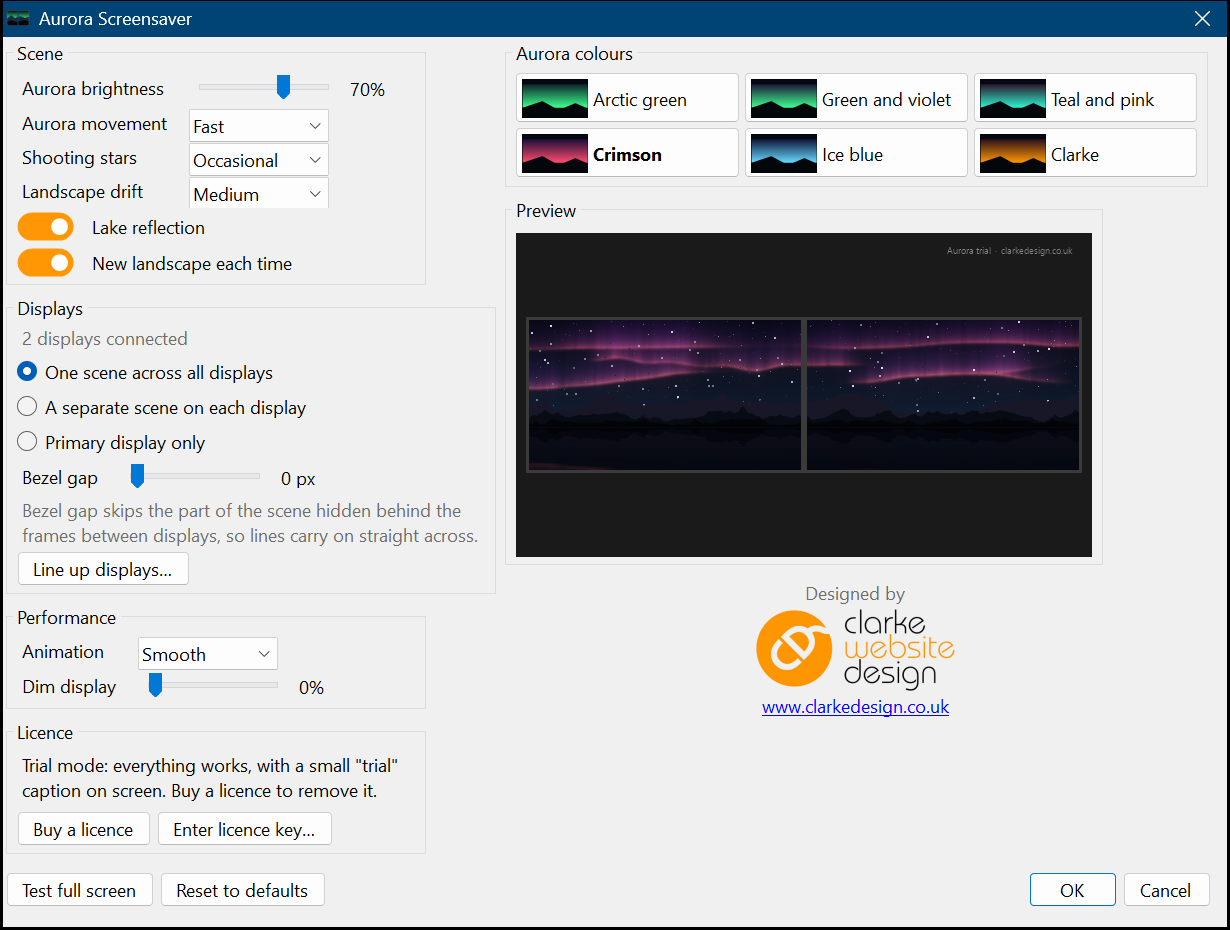
| Option | What it does |
|---|---|
| Aurora colours | Arctic green, Green and violet, Teal and pink, Crimson, Ice blue or Clarke |
| Aurora brightness | 10 to 100% |
| Aurora movement | Still, Slow, Medium or Fast: how quickly the curtains ripple, fold and brighten |
| Shooting stars | Off, Occasional or Frequent. They fly across from one display to the next |
| Landscape drift | Off, Slow or Medium: how fast the view pans across the landscape |
| Lake reflection | Off puts the landscape on solid ground instead |
| New landscape each time | Off shows the same mountains every time |
| Displays | One scene across all displays, a separate scene on each display, or the primary display only. Available when more than one display is connected |
| Bezel gap | 0 to 400 pixels between neighbouring displays, with a Line up displays button to set it by eye |
| Animation | Smooth, Balanced or Power saving |
| Dim display | 0 to 90% darker |
Perfect for
- Two, three or more monitors side by side
- Gaming and trading setups
- Ultra-wide displays
- Lovers of the northern lights
- Anyone who wants a calm, beautiful scene on their desk
Install in four easy steps
- Download the zip, then right-click it and choose Extract All…
- Copy Aurora.scr into C:\Windows\System32. Windows will ask for permission, so click Continue.
- Type screen saver into the Start menu search and open Change screen saver.
- Choose Aurora from the list, click Settings… to customise it, then click OK.
Just want a quick look first? Right-click Aurora.scr and choose Test to see it full screen, or Configure to open its settings.
Frequently asked questions
Ready to try the Aurora Screensaver?
It's free to try, it's small, and it takes a minute to install.
More screensavers: Flip Clock · Word Clock · Departure Board · OLED Safe · Sky Tonight