Word Clock Screensaver
Windows Screensaver
Tell the time in words, not numbers.
The time spelled out in words, lit up in a grid of letters: IT IS TWENTY PAST FOUR.
Free trial
Every feature works. A small trial caption shows on screen until you buy a licence.
- English, Deutsch, Français and Español
- Corner dots for the minutes in between
- Words fade softly from one time to the next
- Adjustable glow, colours and font
- Gentle shift to protect OLED screens
For Windows 11 · word-clock-screensaver.zip · 2023 KB
See it in action
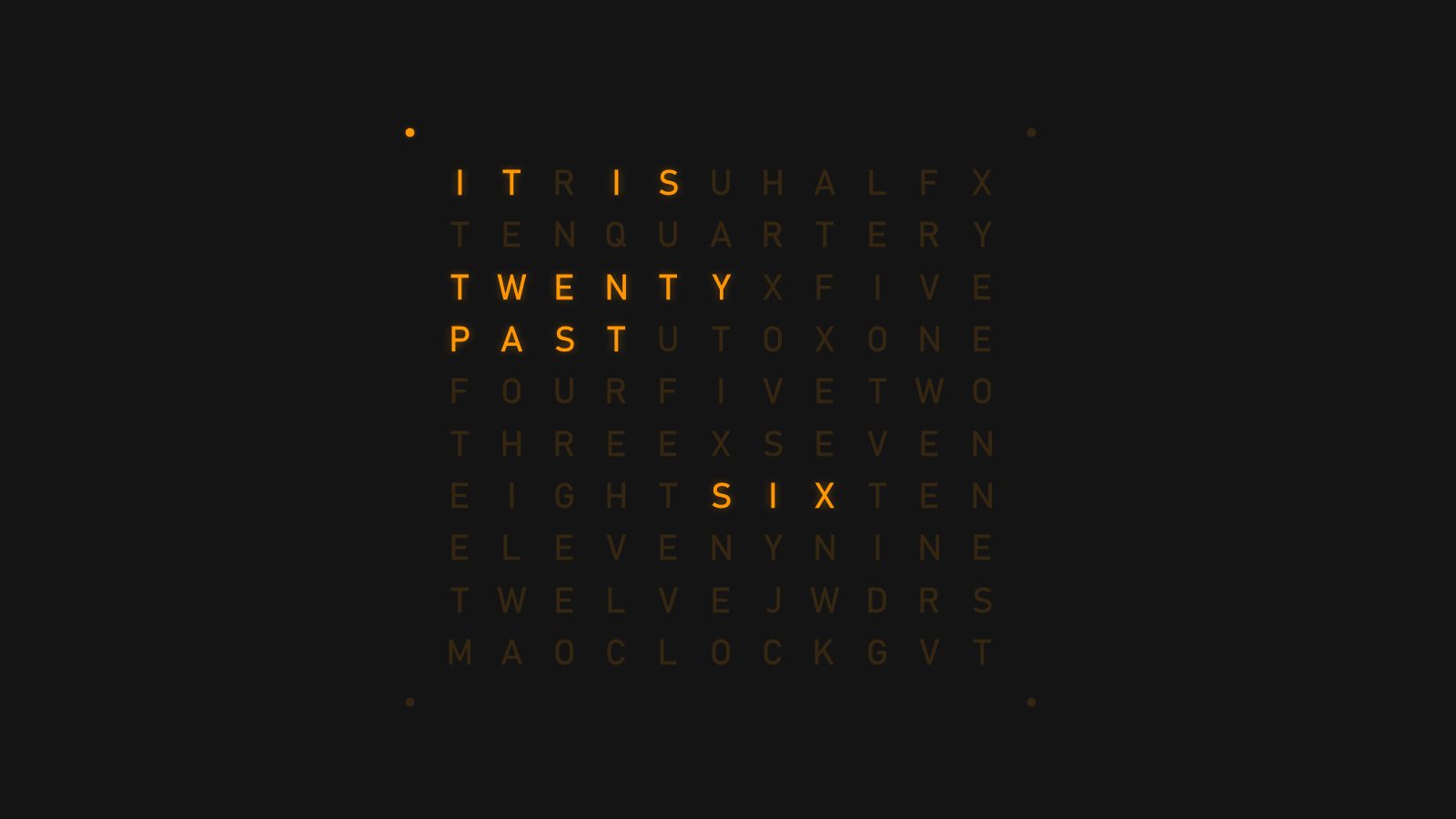
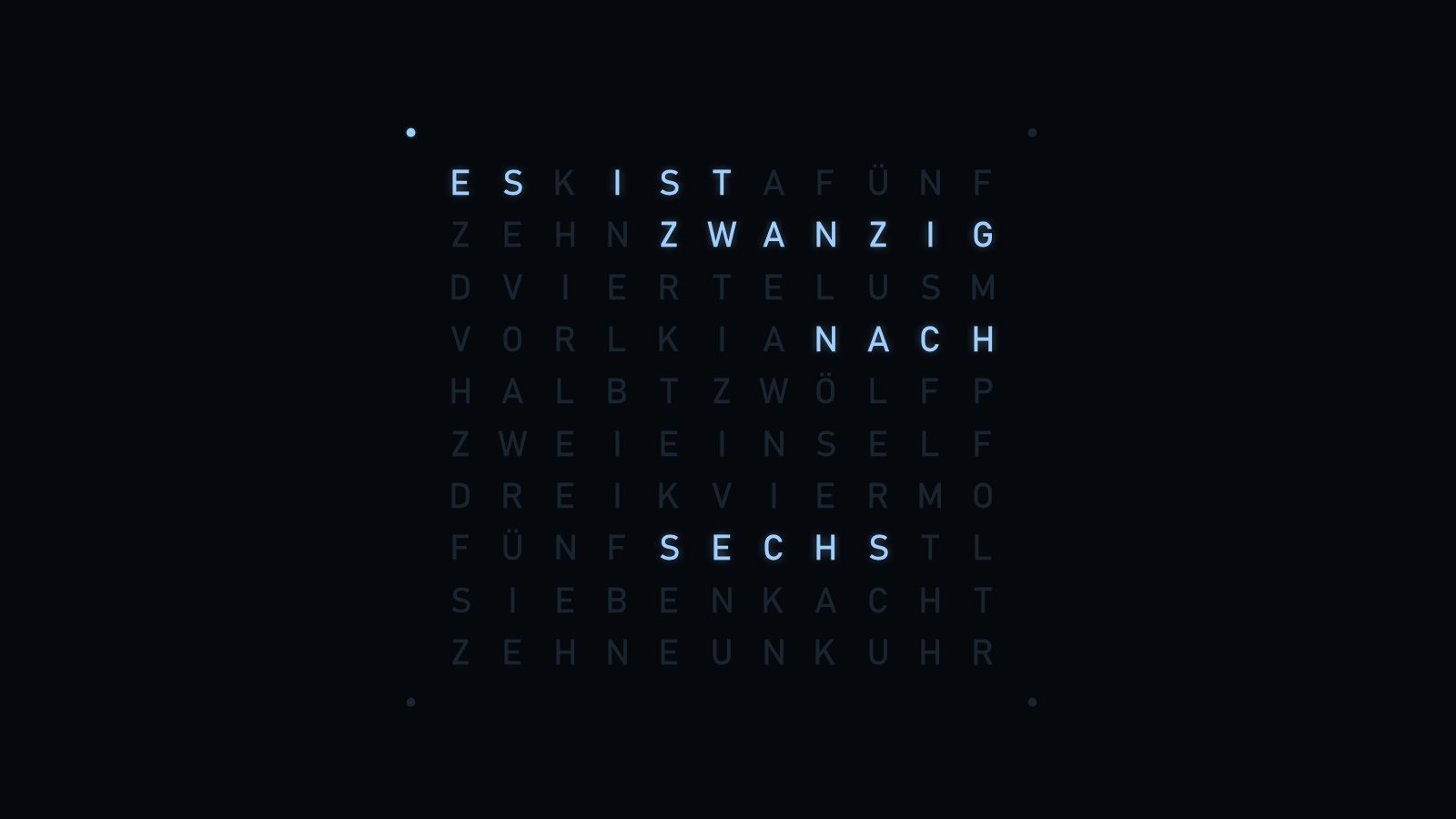
A clock that reads like a sentence
Time in words
The time lights up in a grid of letters, such as IT IS TWENTY PAST FOUR, in five-minute steps.
Minute dots
Four corner dots light up one by one for the minutes in between, so you always know the exact time.
Four languages
English, Deutsch, Français and Español, each with its own letter grid.
Soft fades and glow
Words fade gently from one time to the next, with an adjustable glow around the lit letters.
Your colours
Pick the background and letter colours yourself, or start from the Classic, Clarke, Warm, Ice, Night red and Paper presets.
Kind to OLED screens
Switch on the gentle shift, and the grid moves a few pixels over several minutes so no pixel stays lit in one place.
Settings
Click Settings… in Windows' Screen Saver Settings to make the Word Clock Screensaver your own. Your choices are saved for your Windows account.
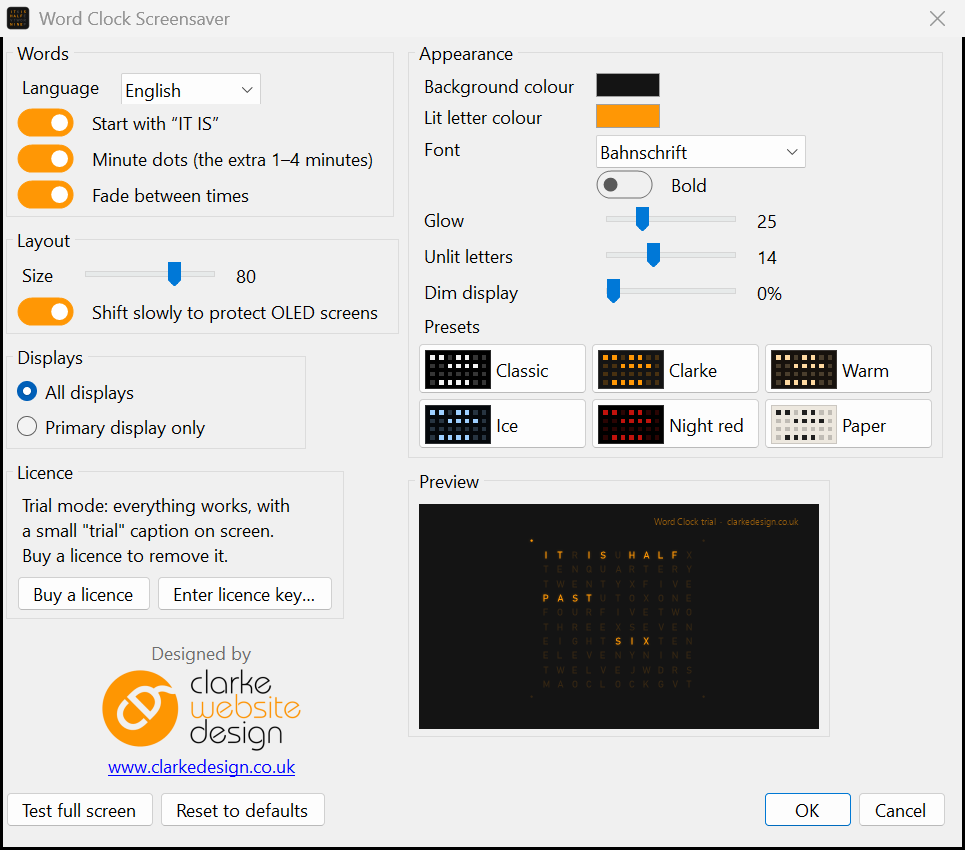
| Option | What it does |
|---|---|
| Language | English, Deutsch, Français or Español |
| Start with "IT IS" | Off lights only the time words (or ES IST, IL EST, ES / SON in the other languages) |
| Minute dots | The corner dots for the minutes between five-minute steps |
| Fade between times | Off switches the words instantly |
| Size | 30 to 100% of the screen |
| Shift slowly to protect OLED screens | Drifts the grid a few pixels over several minutes, so no pixel stays lit in one place |
| Colours | Background and lit letter colours, plus Classic, Clarke, Warm, Ice, Night red and Paper presets |
| Font | Any installed font, in bold if you like. The default is Bahnschrift |
| Glow | 0 to 100% halo around the lit letters. Off gives the crispest letters |
| Unlit letters | 0 to 40%, where 0 hides the unlit letters completely |
| Dim display | 0 to 90% darker |
| Displays | Primary display only (the others go black), or all displays |
Perfect for
- Fans of the designer word clocks seen in homes and shops
- Homes and offices that speak German, French or Spanish
- Language learners practising telling the time
- OLED monitors and laptops
- Anyone who'd like a calmer, more stylish clock
Install in four easy steps
- Download the zip, then right-click it and choose Extract All…
- Copy Word Clock.scr into C:\Windows\System32. Windows will ask for permission, so click Continue.
- Type screen saver into the Start menu search and open Change screen saver.
- Choose Word Clock from the list, click Settings… to customise it, then click OK.
Just want a quick look first? Right-click Word Clock.scr and choose Test to see it full screen, or Configure to open its settings.
Frequently asked questions
Ready to try the Word Clock Screensaver?
It's free to try, it's small, and it takes a minute to install.
More screensavers: Flip Clock · Departure Board · Aurora · OLED Safe · Sky Tonight