OLED Safe Screensaver
Windows Screensaver
A clock that looks after your OLED screen while you're away.
A burn-in safe clock for OLED monitors and laptops, that keeps moving and lights as few pixels as possible.
Free trial
Every feature works. A small trial caption shows on screen until you buy a licence.
- Pure black background, so most pixels stay off
- The clock drifts slowly and never repeats its path
- Fades to a fully black screen after a set time
- Optional colour cycling to spread the wear
- Clock, clock and date, or nothing at all
For Windows 11 · oled-safe-screensaver.zip · 68 KB
See it in action
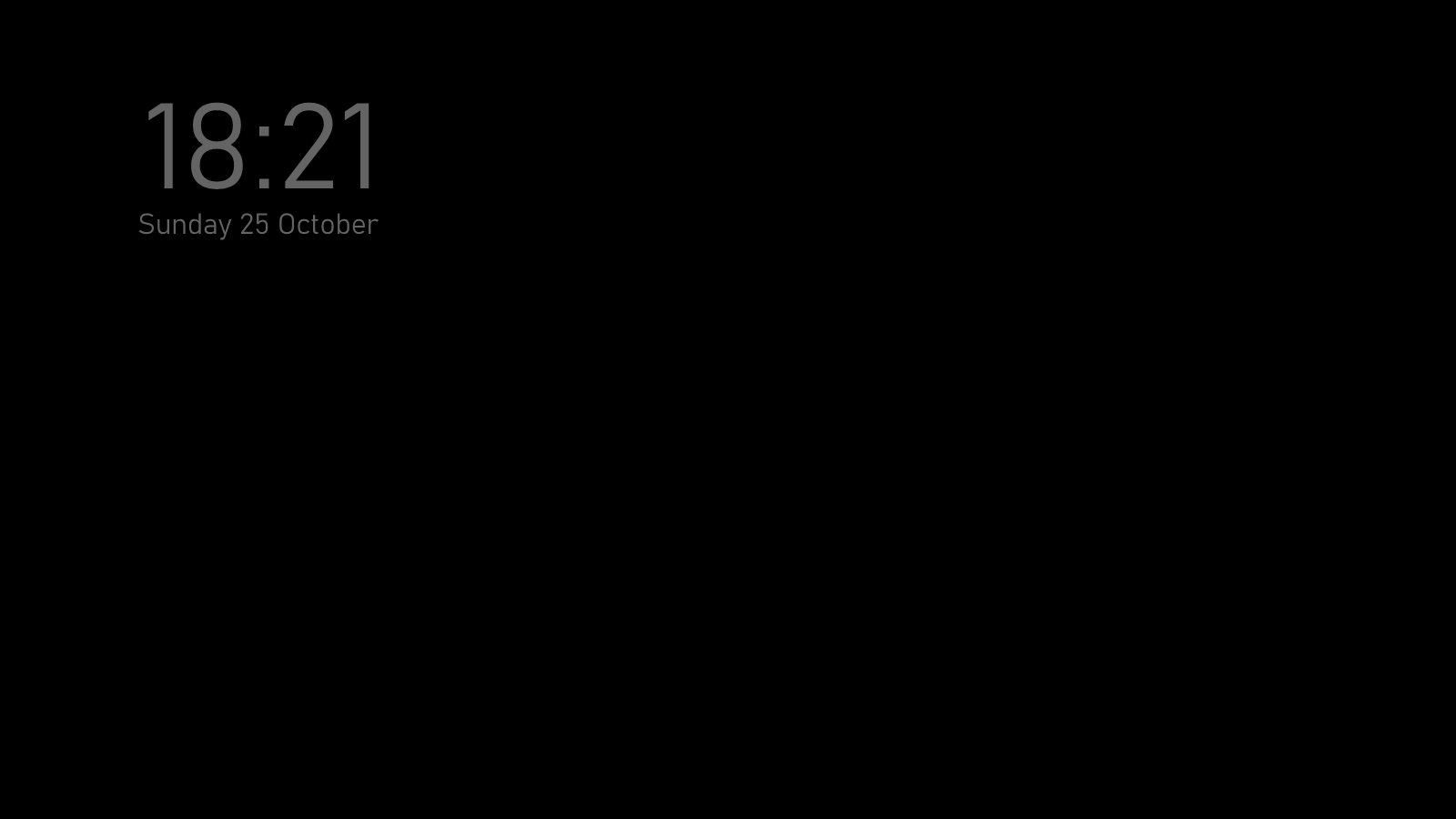
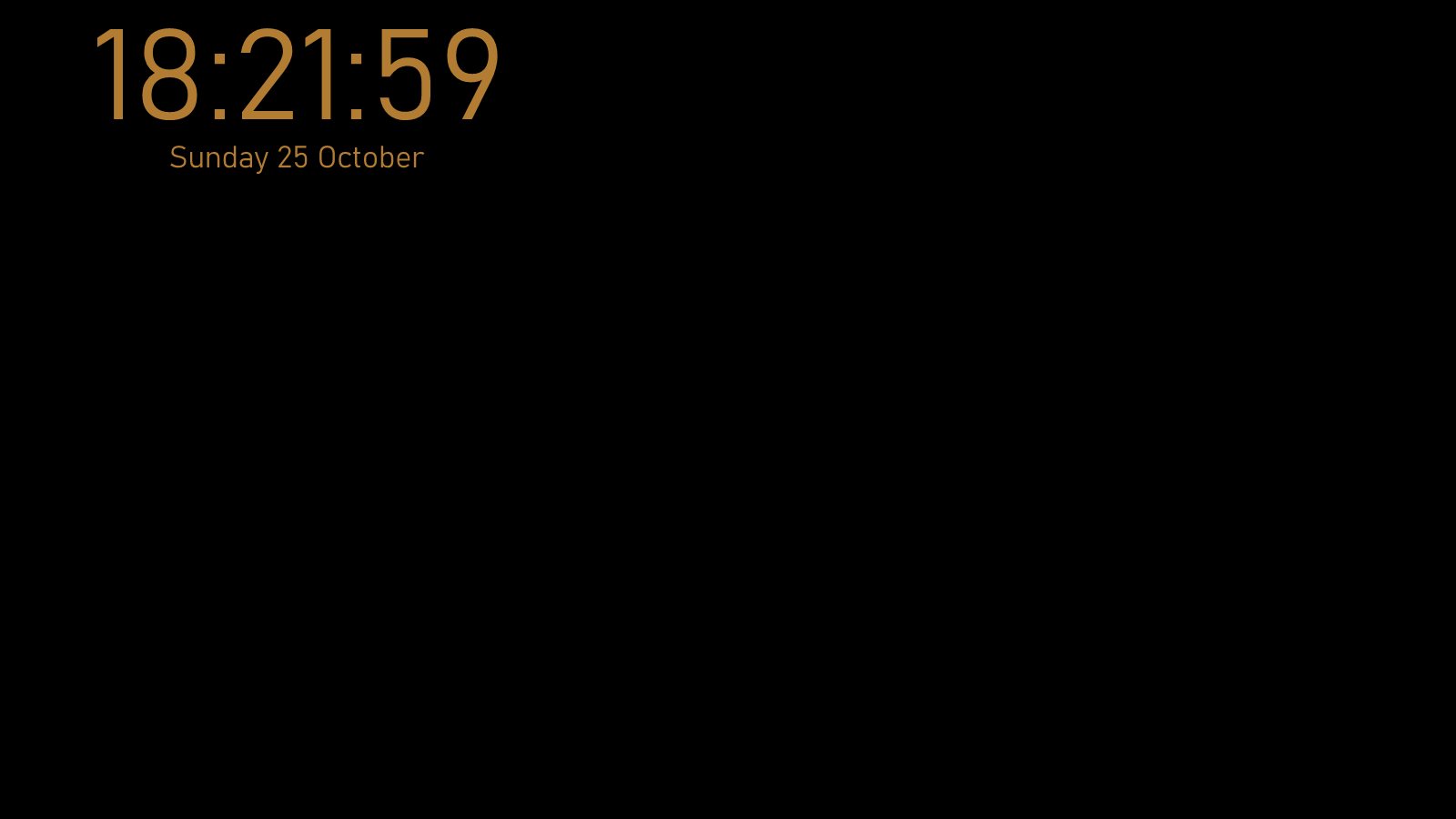
Designed to prevent burn-in
Pure black background
On an OLED screen, black pixels are switched off, so typically less than 1% of the screen is lit.
Never stays still
The clock drifts slowly and bounces off the edges at a slightly different angle each time, so its path never repeats.
Dim, light lettering
A thin font at half brightness means fewer pixels light up, and they glow less.
Goes fully black
After a set time, 30 minutes to begin with, it fades to a completely black screen.
Optional colour cycling
Slowly cycling the colour spreads the wear across the red, green and blue parts of each pixel.
Clock, date or nothing
Show the time, the time and date, or nothing at all for a pure black screen.
Settings
Click Settings… in Windows' Screen Saver Settings to make the OLED Safe Screensaver your own. Your choices are saved for your Windows account.
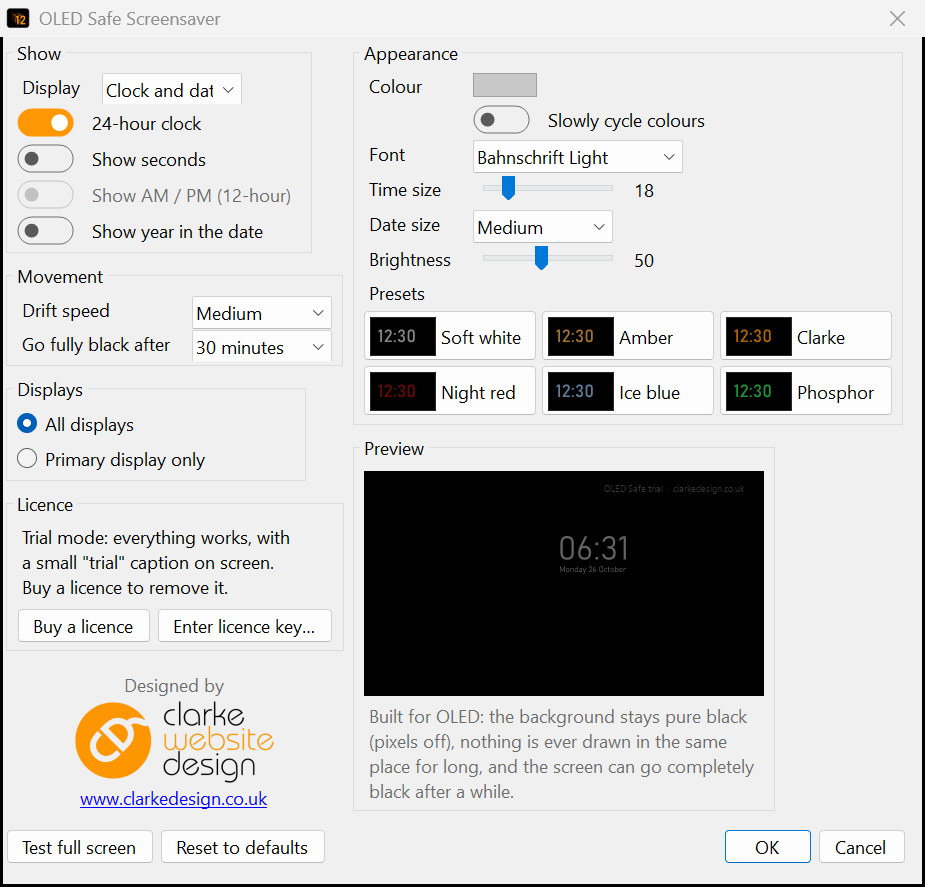
| Option | What it does |
|---|---|
| Display | Clock, Clock and date, or Nothing (pure black) |
| Time format | 24-hour clock, show seconds, and AM/PM |
| Show year in the date | For example, Sunday 25 October 2026 |
| Drift speed | Slow, Medium or Fast |
| Go fully black after | Never, 10 or 30 minutes, or 1 or 2 hours |
| Colour | Choose your own, or the Soft white, Amber, Clarke, Night red, Ice blue and Phosphor presets, with an option to slowly cycle colours |
| Font | Any installed font. The default is Bahnschrift Light |
| Time size | 10 to 60% of the screen width. Bigger lights more pixels |
| Date size | Small, Medium or Large, compared with the time |
| Brightness | 10 to 100% |
| Displays | Primary display only (the others go black), or all displays, each drifting on its own |
Perfect for
- OLED monitors and TVs used as monitors
- Laptops with OLED screens
- Anyone worried about screen burn-in
- Bedrooms and dark rooms, where a bright screen is too much
- Anyone who'd like a simple, elegant clock
Install in four easy steps
- Download the zip, then right-click it and choose Extract All…
- Copy OLED Safe.scr into C:\Windows\System32. Windows will ask for permission, so click Continue.
- Type screen saver into the Start menu search and open Change screen saver.
- Choose OLED Safe from the list, click Settings… to customise it, then click OK.
Just want a quick look first? Right-click OLED Safe.scr and choose Test to see it full screen, or Configure to open its settings.
Frequently asked questions
Ready to try the OLED Safe Screensaver?
It's free to try, it's small, and it takes a minute to install.
More screensavers: Flip Clock · Word Clock · Departure Board · Aurora · Sky Tonight