Flip Clock Screensaver
Windows Screensaver
Turn your idle screen into a classic flip clock.
A retro flip clock, with every digit turning over on its own flap, just like the classic bedside clocks.
Free trial
Every feature works. A small trial caption shows on screen until you buy a licence.
- 12 or 24-hour time, with optional seconds
- Landscape, portrait or automatic layout
- Choose your colours and font, or pick a preset
- Dim the display and set the size
- Primary display only, or every display
For Windows 11 · flip-clock-screensaver.zip · 1934 KB
See it in action
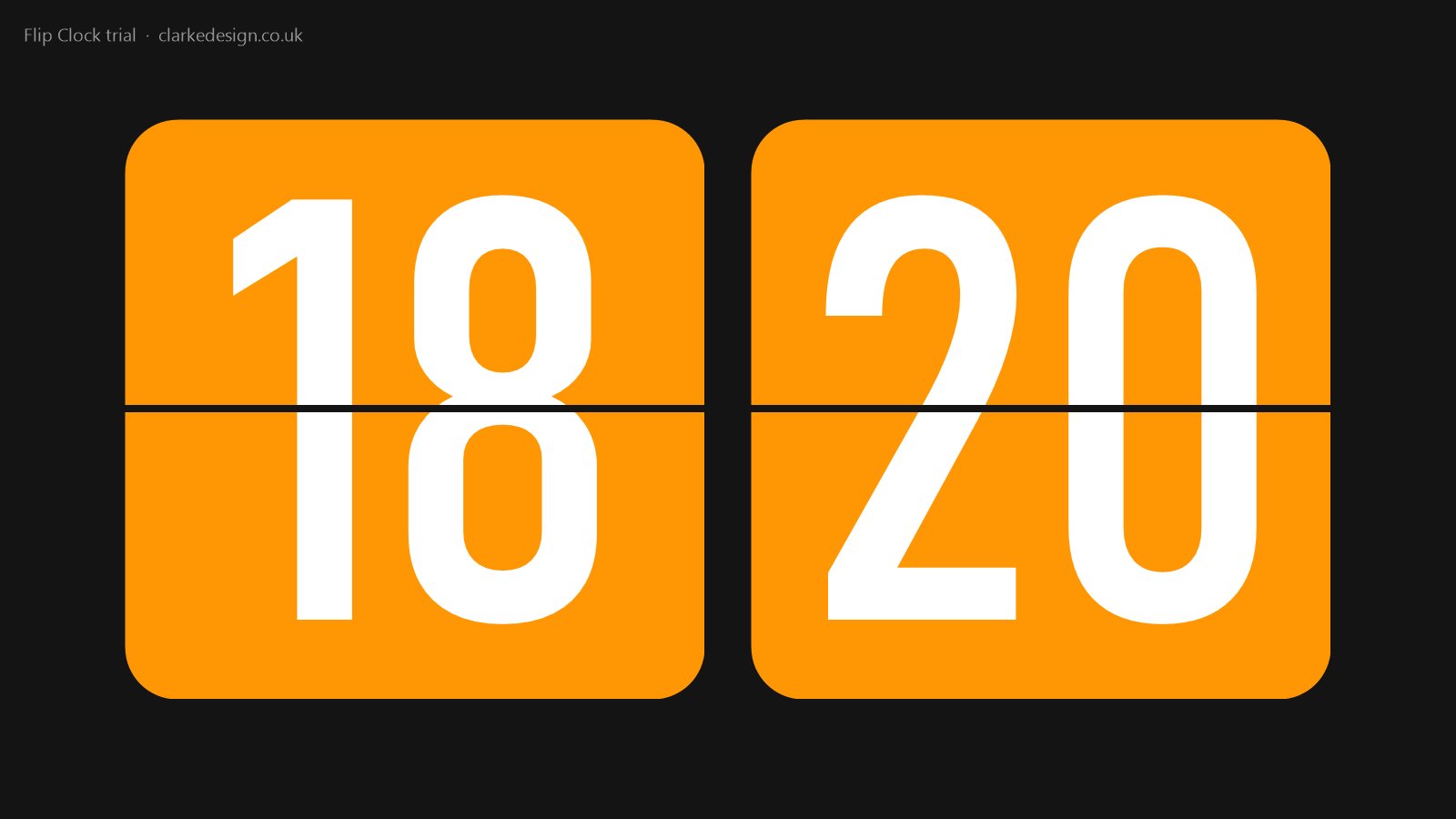
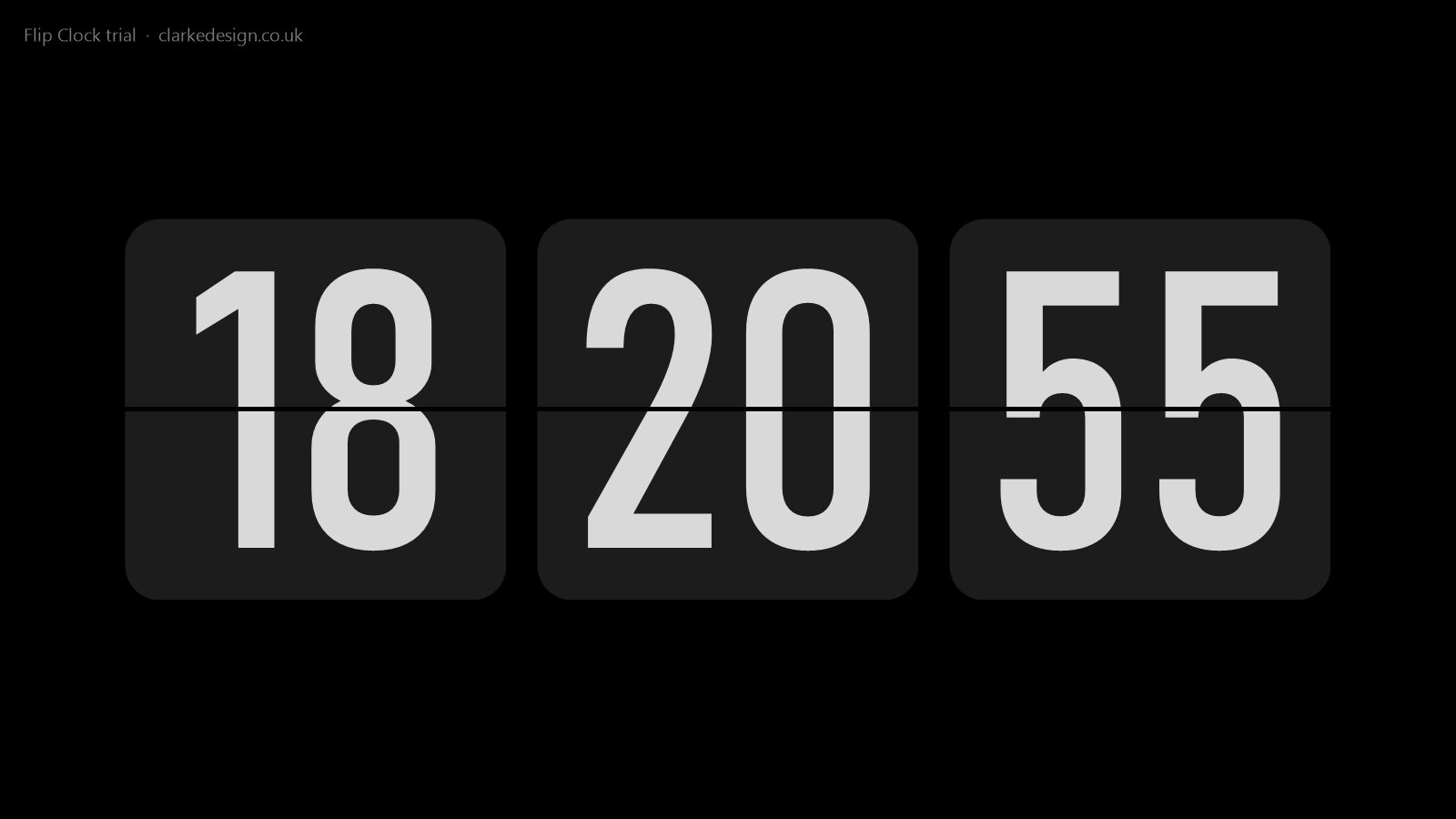
Retro style, modern settings
12 or 24-hour time
Choose the time format you're used to, with an optional AM/PM marker and leading zero, and add a third flap for the seconds.
Real flip animation
Each flap turns over as the time changes, just like a bedside clock. Prefer it still? Switch the animation off.
Landscape or portrait
The clock follows the shape of your display automatically, or you can fix it side by side or stacked.
Your colours
Pick the background, flap and digit colours yourself, or start from the Classic, Red, Orange, Midnight, Paper and Clarke presets.
Size and font
Make it fill from 30 to 100% of the screen, in any font on your computer. Show the flaps, or just the digits on their own.
One display or all
Show the clock on your main display with the others black, or on every display you have.
Settings
Click Settings… in Windows' Screen Saver Settings to make the Flip Clock Screensaver your own. Your choices are saved for your Windows account.
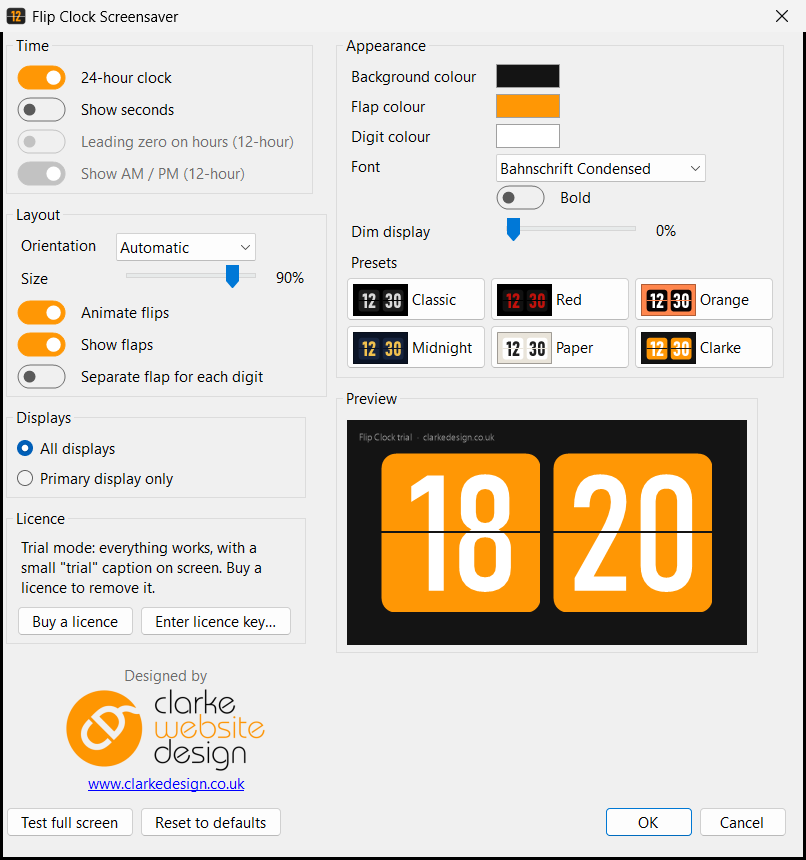
| Option | What it does |
|---|---|
| 24-hour clock | Off gives a 12-hour clock, with an optional AM/PM marker and leading zero |
| Show seconds | Adds a third flap for the seconds |
| Orientation | Automatic (follows the shape of the display), Landscape, or Portrait (stacked) |
| Size | 30 to 100% of the screen |
| Show flaps | Off shows just the digits on the background |
| Separate flap for each digit | One flap per digit, instead of one per pair |
| Animate flips | Turn off for an instant change |
| Colours | Background, flap and digit colours, plus Classic, Red, Orange, Midnight, Paper and Clarke presets |
| Font | Any installed font, in bold if you like. The default is Bahnschrift Condensed Bold |
| Dim display | 0 to 90% darker |
| Displays | Primary display only (the others go black), or all displays |
Perfect for
- Anyone who misses their old flip clock
- Offices and reception areas with a screen on show
- Second monitors that are often left idle
- Retro and minimalist desk setups
- Anyone who wants to glance at the time from across the room
Install in four easy steps
- Download the zip, then right-click it and choose Extract All…
- Copy Flip Clock.scr into C:\Windows\System32. Windows will ask for permission, so click Continue.
- Type screen saver into the Start menu search and open Change screen saver.
- Choose Flip Clock from the list, click Settings… to customise it, then click OK.
Just want a quick look first? Right-click Flip Clock.scr and choose Test to see it full screen, or Configure to open its settings.
Frequently asked questions
Ready to try the Flip Clock Screensaver?
It's free to try, it's small, and it takes a minute to install.
More screensavers: Word Clock · Departure Board · Aurora · OLED Safe · Sky Tonight